
Audio experience
An audio experience allows visitors to listen to your written content which combines an audio player and audio track generated from the JWX Studio.
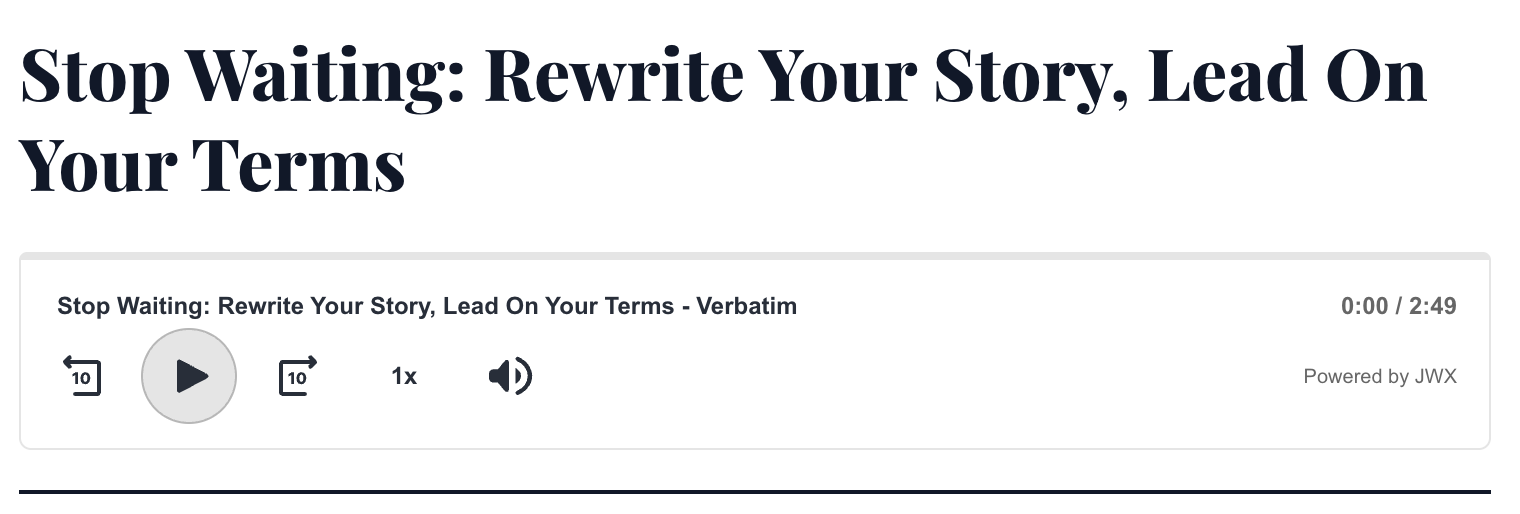
Audio placement under an article title
To implement an audio experience, you must:
- Create JWX Studio article-to-audio projects, tailored to read your article verbatim or use prompting to create a unique summary
- Setup a Dynamic Strategy Rule (DSR) strategy with an Audio Experience
- Embed a DSR rule placement with the KVPs matching the JWX Studio project
Prerequisites
| Item | Description |
|---|---|
| Placement ID | Unique identifier for the placement Follow these steps to obtain the placement ID:
|
| JWX Studio | JWX Studio enabled on your account with an existing project |
| External ID | Unique identifier for the article Follow these steps to obtain the external ID:
|
Set up an audio experience
To set up an audio experience, you must create an audio experience and define the key for retrieving Studio media.
Create an audio experience
Follow these steps to create an audio experience:
-
On the decision tree, click + Add experience > Audio experience. The audio experience creation page appears.
-
Under Audio experience, enter a Name. This will appear as the identifier of the node in the decision tree.
-
Under General, select the JWX Studio Project delivery key.
This key must be the same key used to set custom data for the Dynamic Strategy Rule placement. JWX uses this key to match a value from the page to the External ID in JWX Studio.
-
Under Branding, configure the player display options.
Setting Description Display mode Controls the audio player layout and available UI elements
Options:- Simple displays a minimal set of controls, including play/pause, the progress bar, and timestamps
- Standard displays the full set of player controls
For details about the UI elements and customization options available in each layout, see the Audio Experience Customization Reference.
Powered by JWX signature Shows or hides the Powered by JWX signature
Enabled by default.
Listen CTA state Controls whether the audio engagement state appears before playback starts
-
(Optional) Configure advertising.
For display ads, in addition to configuring the settings below, create the applicable display line items in JWX Ad Server.
Setting Description Audio ads Plays preroll and midroll audio ads and controls ad timing
Follow these steps:- Click the toggle to ON. The section expands.
- Enable one or both Ad events.
Preroll
- Select Preroll. The Ad tag URL field appears.
- Enter an Ad tag URL.
Midroll
- Select Midroll. The Ad tag URL field appears.
- Enter an Ad tag URL.
- Enter the Minimum time before first midroll in seconds.
- Under Ad settings, set Minimum time between ads in seconds. The default is 15 seconds.
Display ads Displays ads that refresh at a configured interval
Follow these steps:- Click the toggle to ON. The section expands.
- Set the Refresh rate in seconds.
-
Click Done.
Define the key for retrieving Studio media
To learn more about adding custom data to a placement, see Provide custom data to a placement.
On the article page (on your site), set a key-value pair for your Dynamic Strategy Rule placement using one of the following methods.
If you use the
jwDataStorecode, this client-side code must occur before the placement embed script loads the player.
// Append the following query parameter to the placement embed script.

?&custom.<placement-id>.<key>=<value>
<div
id="jwp-placement-1"
data-jw-placement-id="<placement-id>"
data-jw-<key>="<value>">
</div>const jwDataStore = window.jwDataStore || { custom: {} };
jwDataStore.custom.<placement-id> = { <key>: "<value>" };
window.jwDataStore = jwDataStore;| Placeholder | Description |
|---|---|
<placement‑id> | Unique identifier for the placement |
<key> | Key for retrieving a JWX Studio media Key names must start with a lowercase letter and contain only lowercase letters, numbers, and underscores. |
<value> | JWX Studio external ID Example: my-article-123456 |
Updated 19 days ago